

CONNECT HELPCENTER · ORDERS AND CUSTOMERS
Find an order and understand every status.
The order list connects the customer, items, payment and delivery. This guide explains how to read the list, all available statuses, basic and advanced search, and how to safely track changes.
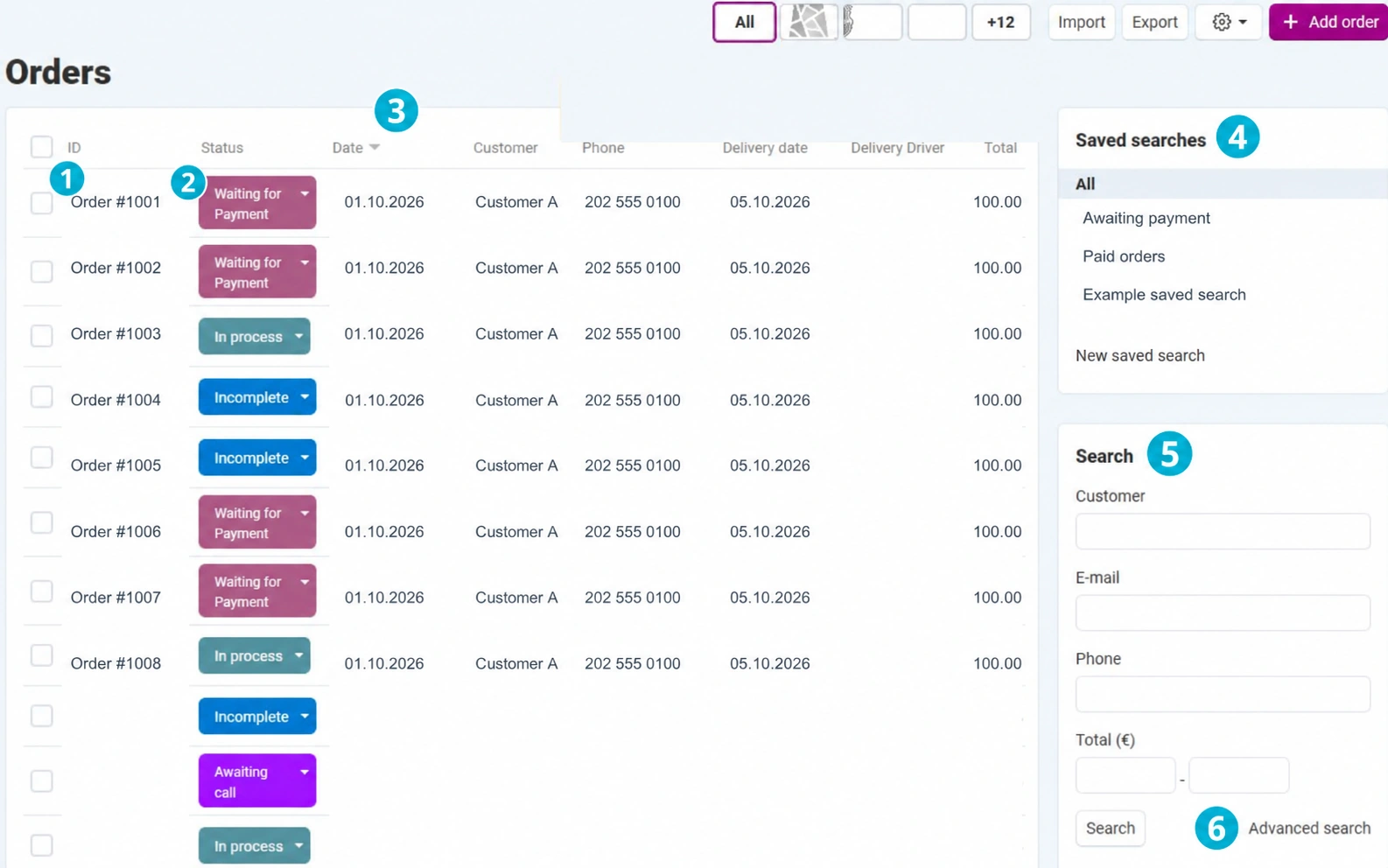
The screenshots use the English interface and sample data. Numbers connect locations in the image with the localized instructions. Click the image for a larger view. Actual orders and customer data were not changed for the demonstration.
Open the correct list
In the administration, open Orders → Orders. The list covers orders available to your seller account. If data is missing, check permissions, the selected storefront, the active saved search and the date range before concluding that the order was not received.
The order date, shipment creation date and customer's requested delivery date are three different data points. The order number is also not the invoice number, shipment ID or Tracking ID.
- 01
Open an order by number
Click the number in the ID column. The details of the same order will open. If an invoice number is displayed, distinguish it from the order number. When contacting support, send the order number and a description of the issue without unnecessarily sending the customer's personal data.
- 02
Read the status before every action
The colored status shows the current state, but open the details as well for a final conclusion. Clicking the status menu is not just filtering: selecting another status may immediately trigger a change and notifications. To isolate orders, use filters instead of changing statuses.
- 03
Compare columns and order
Review the date, customer, phone, requested delivery date, delivery person and total amount according to the available columns. The header with the sorting control changes the order of the results. The delivery date may be empty if the customer did not select a time slot or this option is not used.
- 04
Check the saved search
Saved searches reapply previously used conditions. The search name is not the order status. For a new overview, select All and check that previous conditions have been removed. Give your own searches meaningful names, for example “Awaiting payment – this month”.
- 05
Use basic search
In the right panel, enter the customer, email, phone or total amount range, then click Search. Combined criteria narrow the results. If there are no results, remove some conditions and check again; an incorrectly entered phone number or a narrow date range can easily hide the order you are looking for.
- 06
Open advanced search
Click Advanced search. A dialog with additional criteria opens. Opening the dialog does not change orders. On a narrower screen, first open the search side panel using the appropriate display control.
Advanced filters and saving a search
- 07
Specify the customer and amount
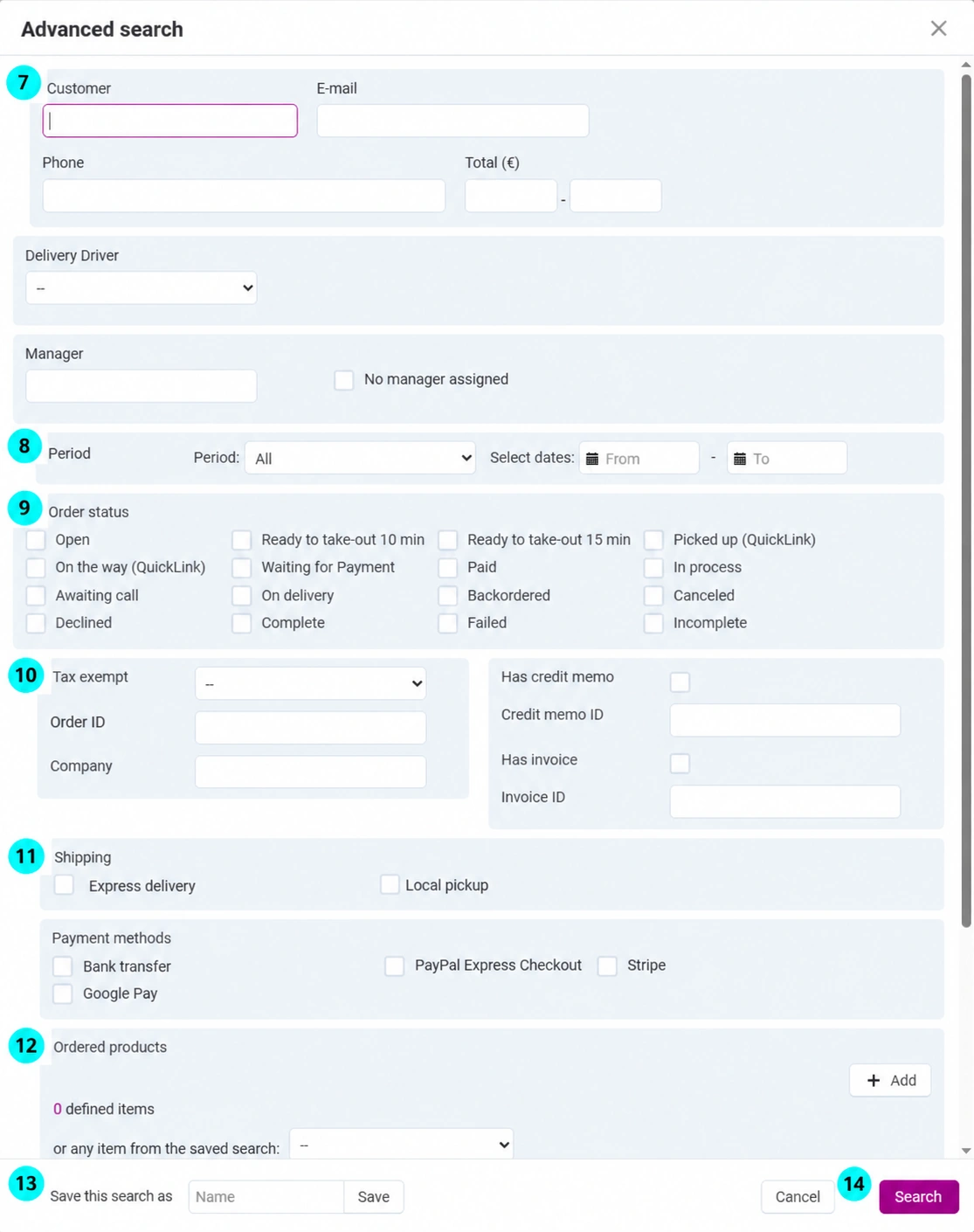
Enter only known information. For the amount, use the lower and upper limits in the displayed currency. The delivery person and manager further restrict the results; the Unassigned manager checkbox is intended for orders that have not yet been assigned.
- 08
Select the order period
Select an offered period or Custom, then enter From and To. Check the year and date order. This filter follows the order date; separate delivery date fields are located lower in the form and track a different data point.
- 09
Select the statuses you want to review
Select one or more of the offered statuses. Selection in this dialog is used to find orders, not to change them. For daily processing, separate those awaiting payment, those being processed and shipped orders.
- 10
Search by identifiers and documents
For an exact record, enter the order ID. If needed, add the company, tax exemption, whether an invoice or credit memo exists, and their identifiers. Do not enter the Tracking ID in the order ID field. The existence of an invoice is not the same as payment confirmation.
- 11
Filter by delivery and payment method
Select the appropriate delivery and/or payment method. The combination of bank transfer, the Awaiting payment status and a specific period is useful for checking outstanding payments. The data in the screenshot is for demonstration; in the actual form, select your store's method.
- 12
Include requested products or delivery time
In the Ordered products section, add items using the standard selector or use a saved product search. Lower in the dialog, the date, time range and delivery message, as well as the subscription order filter, are available. Scroll the dialog content to those fields.
- 13
Save a reusable search
Enter a name in the Save this search as field and confirm saving. This saves the search conditions, not the order contents or status. After reopening it, check that the conditions and period are as expected.
- 14
Run the search and review its scope
Click Search, check the number of results and list pages, and review at least several records. The checkboxes next to rows select orders for bulk actions; they are not the same as all search results. Use export and other actions only after checking the actual scope.
What does each status mean?
The following overview uses the current HR names from the system. Choose a status according to the actual event, not the desired row color. Special pickup and QuickLink statuses are not a required step for every store.
| Status in the localized interface | Meaning and next check |
|---|---|
| Open | The order has been received and requires an initial check. Check the items, address, payment method and feasibility before continuing; the status alone does not confirm payment. |
| Ready to take-out 10 min | An operational message for preparing personal pickup. Select it only when you can actually meet the stated deadline and when your store uses this workflow. |
| Ready to take-out 15 min | An operational message with a different preparation deadline. In the verified HR interface it says 20 minutes, while the English name in the screenshot states 15 minutes. Before using it, ask Connect administration to align the names. |
| Picked up (QuickLink) | A special QuickLink workflow status indicating collection. Use it only in the agreed QuickLink integration; it is not a general confirmation that the order has been handed to the end customer. |
| On the way (QuickLink) | A special QuickLink status indicating that the shipment is on the way. Check the connected integration and tracking; do not randomly replace it with the general Shipped status. |
| Waiting for Payment | Payment is pending according to the selected payment method. Before preparing or shipping, check the bank or payment channel; do not mark payment based only on the customer's message. |
| Paid | Payment has been recorded during order processing. Compare the amount and transaction. Paid does not mean that the package has already been shipped or delivered. |
| In process | The order is being prepared or fulfilled. Check availability and the responsible person. In the existing configuration, this status also affects the payment record in the system; do not use it as a substitute for an actual payment check. |
| Awaiting call | The customer must be contacted for confirmation or an arrangement. Review the reason and record the outcome. This is not the same as a separate record in the Call requests list. |
| On delivery | The goods have been shipped or have started delivery. Create the corresponding shipment and check the quantities, carrier and Tracking ID. The status does not confirm that the customer has already received the goods. |
| Backordered | Delayed procurement or waiting for goods has been selected. The Croatian name “Naručeno” does not mean a newly received order; in English it is Backordered. Agree on a deadline with the customer and check how inventory should be handled. |
| Canceled | The order has been canceled. Before changing it, check the reason, existing shipments and payment. The status alone does not prove that money was refunded and does not replace processing a cancellation request. |
| Declined | The order or payment was declined in the relevant workflow. Check the payment system response and history; distinguish it from the customer's cancellation request. |
| Complete | Order processing is complete. Confirm fulfillment or delivery and the documents before closing. In the current configuration, this status allows returns through RMA, subject to the other product and system conditions. |
| Failed | The process was not completed successfully, for example due to a payment problem. Review the message and payment channel before trying again; avoid duplicate charges or shipping. |
| Incomplete | The purchase was not completed through regular receipt, for example during abandoned or unfinished payment. Before contacting the customer or trying again, check whether a completed order and payment result exist; do not ship it automatically. |
How statuses notify the customer and team
Changing the status participates in the notification system. Depending on the rules for the specific status, the event and the selected recipients, messages may be sent to the customer, seller and administrators. Therefore, change the status promptly: the customer must receive a message that matches the actual progress of the order.
If notification checkboxes are offered, check the recipients before confirming. Repeatedly changing the status for testing can send multiple messages and affect other connected functions. Coordinate template settings and notification rules with Connect administration.
Statuses also affect business processing: inventory, return eligibility, payment display and reports according to the system settings. Canceled or Declined does not by itself execute a verified refund through every payment channel. Do not set Paid or Completed before checking the actual event.
Checking and resolving uncertainties
- Order missing: return to All, expand the period, remove additional filters and check the correct storefront.
- Customer did not receive a message: check the address in the order, the change that was actually performed, the selected notifications and spam; provide support with the order number, time and expected message.
- Incorrect status: do not fix it through a series of random changes; check payment, goods and shipments, then arrange a correction.
- To continue, open the order details and the separate instructions for creating a shipment.