

CONNECT HELPCENTER · ORDERS AND CUSTOMERS
Read the order before you start processing it.
The order details bring together products, customer, payments, notes, and shipping. Here you verify what was ordered and prepare the next actual action.

The screenshots use the English interface and sample data. The numbers connect locations in the image with the localized instructions. Click the image for a larger view. Real orders and customer data were not changed for the demonstration.
Path and initial check
Open Orders → Orders, find the record, and click its number. Check that you are processing the correct storefront and the correct order. A product photo or similar product name is not sufficient for identification: compare the code, options, and quantity.
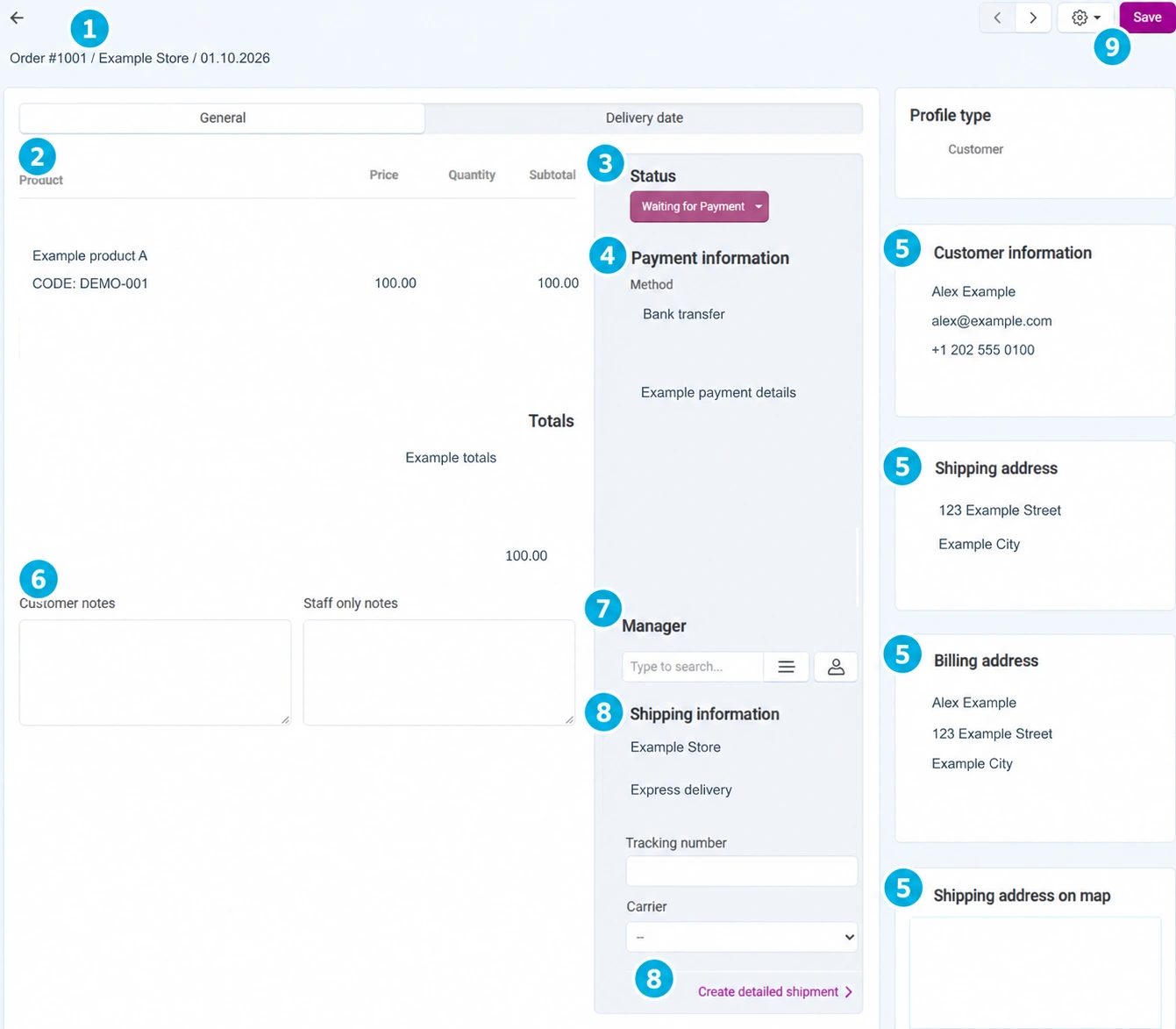
- 01
Check the order header
Record the number, date, and associated store. The arrows at the top may open the neighboring record; after moving to it, check the number again. The total amount is not the only identification criterion, because multiple customers may have the same amount.
- 02
Check each item and the totals
Compare the product, code, variant, ordered quantity, unit price, and subtotal. In the totals, track goods, shipping, discounts, and taxes separately when applicable. Tax may be included in the price or calculated additionally according to the settings; do not automatically add each displayed tax line again.
- 03
Distinguish the status from payment verification
The status shows the processing stage and may trigger notifications and related actions. Before changing it, open the status guide. Do not manually confirm Paid or Completed just to remove a warning from the list.
- 04
Compare the payment details
Read the payment method and available details. For a bank transfer, compare the actual posting; for a card channel, check the associated transaction and result. A pending status, the customer's confirmation of the order, and the final receipt of funds are not the same. If there is a discrepancy, record the reference for Connect support.
- 05
Check the customer and both addresses
Compare the contact details, shipping address, and billing address. They may be different. Do not consider correcting the address in the customer profile confirmation that an existing order has already been changed. For a necessary correction, use the available order action or request assistance, especially if the invoice has been issued or the shipment has already been handed over.
- 06
Separate customer and internal notes
Read the customer's request before preparation. The Staff-only notes field is intended for the internal workflow; it does not replace a message sent to the customer. Record the specific agreement and next action without unnecessary personal or confidential data. Saving a note and sending a message to the customer are two separate actions.
- 07
Check the responsible person
If you use order managers, check the existing assignment. Select an available administrator from the selector, or use Assign to me when that is the intention. Assigning responsibility does not change the store owner or automatically grant access rights.
- 08
Prepare the shipping details
Review the shipping method and the fields for the tracking number and carrier. For a shipment with specific items and quantities, select Create detailed shipment. Follow the separate guide: entering only a tracking number in the basic overview is not a substitute for consciously creating the appropriate detailed shipment.
- 09
Save permitted changes and reopen the record
For changed notes and other editable fields, use the main Save button. Status controls, assignments, and some menus may perform an action immediately; do not assume that everything waits for the same button. After saving, check the system message, reopen the order, and compare the changed data.
Delivery date, documents, and communication
The Delivery Date tab displays available information about the requested time and the customer's message when this feature is used. This is the customer's requested time, not a carrier's confirmation that the package will be delivered then. Coordinate any change to the time with the customer and check what was saved.
In the actions menu at the top, use only the available documents and procedures that you understand. Printing an invoice, creating a shipment, sending notifications, RMA, and cancellation have different consequences. For conversation, use the appropriate Message Center; a reply is not sent merely by entering an internal note.
Before completion, compare the order with the shipments, actual payment, and the agreement with the customer. If the package is partial, record what remains to be shipped. Close the order only when the actual workflow justifies the final status.
If processing gets stuck
- No permitted action: check your permissions and the status, then contact Connect administration.
- The price or address appears incorrect: stop shipment until it is checked; do not correct history merely by changing the product or profile.
- Payment confirmation is missing: check the payment channel and reference, without charging the customer again for verification.
- Send support the order number, action, message, and time of the problem.