

CONNECT HELPCENTER · ORDERS AND CUSTOMERS
Create a shipment with the exact quantities and tracking number.
Detailed shipping connects order items with a specific shipment. Here you enter the Tracking ID, carrier, comment, desired order status change, and customer notification.
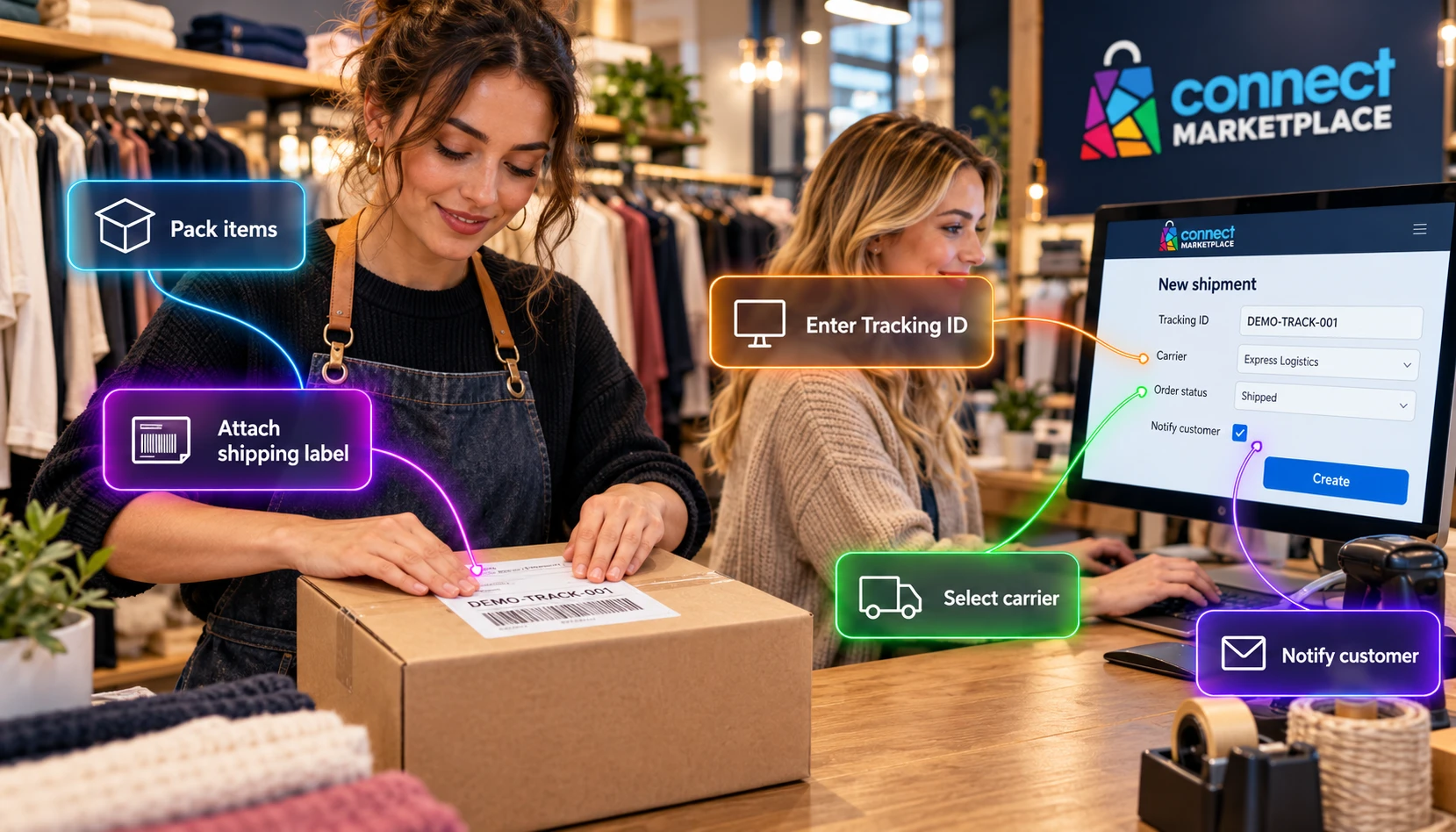
The screenshots use the English interface and sample data. Numbers connect locations in the image with the localized instructions. Click the image for a larger view. Actual orders and customer data were not changed for the demonstration.
Before opening the form
Open Orders → Orders → order number. Check the address, payment according to the agreed method, package contents, and existing shipments. In the Shipping information section, click Create detailed shipment.
The Tracking ID must be the actual shipment number assigned by the carrier. The order number, invoice number, and internal note are not substitutes for it. Creating a record in CM does not mean that the package has already been physically handed over to the carrier or that a courier pickup has been automatically ordered.
- 01
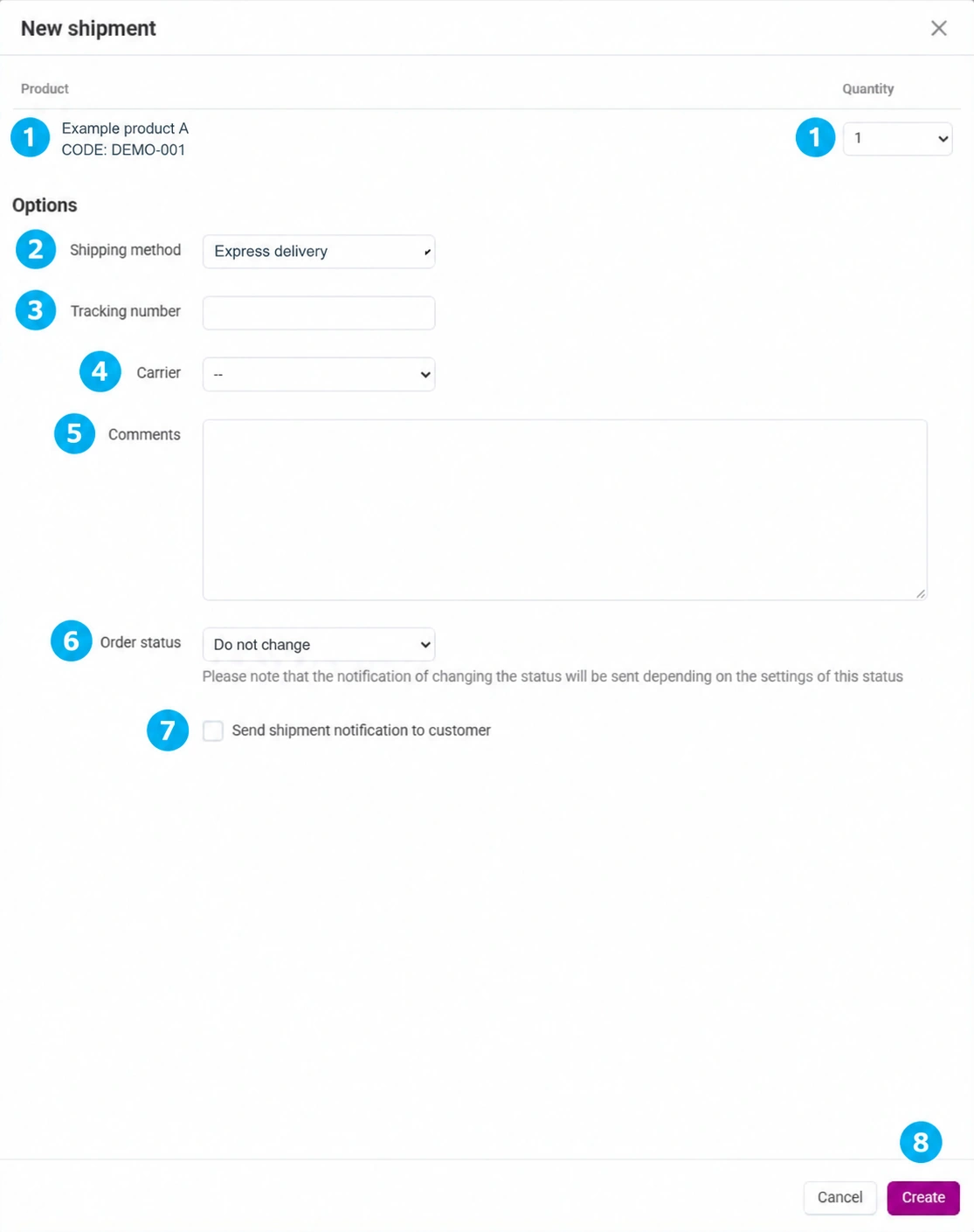
Select the items and quantities in the actual shipment
For each product, check the SKU and the quantity available for shipping. For an item you are not shipping now, select 0; for the others, select the quantity that is actually in the package. Do not include units that have already been shipped. Example: of three ordered units, you are shipping two now; enter 2 for this shipment and process the remaining unit separately.
- 02
Confirm the shipping method
Select the method that matches the order and the actual shipment. Personal pickup is not courier delivery. If the agreement with the customer differs from the existing method or cost, resolve that agreement first; do not use a label change to conceal an inconsistent price or address.
- 03
Enter the Tracking ID in Tracking number
Copy the number from the carrier confirmation or label without additional text such as “package number”. Preserve any leading zeros and check the characters. In the screenshot, the field is empty because no actual shipment was created; in your own processing, enter the assigned number. Do not use the sample DEMO number for an actual shipment.
- 04
Select the actual carrier
In the Carrier field, select the service that operates the entered number. The shipping method and carrier are separate data: an incorrect carrier may open unsuitable tracking even if the number is correct. If the desired service is not available, check the supported method with the Connect team instead of making a random selection.
- 05
Add the necessary comment
Enter a short note related to this shipment, for example that a second package will follow later. Do not enter secret data, and do not assume that every note is internal; check the content in the context of the document and notification. Manage internal organization in staff notes or the agreed channel.
- 06
Explicitly select the order status
The verified form defaults to Do not change. If the shipment is actually being dispatched, explicitly select On delivery, as shown in the English screenshot. This means that delivery has started, not that the package has been delivered. Do not leave Do not change assuming this status will be set automatically. For a partial shipment, check whether the entire order should already receive this status under your agreed workflow.
- 07
Select the shipment notification
Enable Send delivery notification to customer when the customer should receive a message about this shipment. This is a separate option from the status-change notification, which is sent according to the rules of the selected status. The two messages may have different content and purposes; do not treat them as the same. Before confirming, check the customer’s address, carrier, and Tracking ID.
- 08
Click Create only once and check the result
After checking the items, quantities, tracking number, carrier, status, and notifications, click Create. Wait for the response and check whether a new shipment and the expected order status exist. If you do not see a success message, open the shipment overview before clicking again and check whether the record was created anyway. Canceling the dialog closes the preparation without intentionally creating anything.
After creation: complete the check
Open Orders → Shipments, find the corresponding order, and open the shipment number. Compare the items and quantities, date, carrier, and Tracking ID. Return to the order and check the status. One order may have multiple shipments; the shipment number is not the tracking number.
Check the customer view and the tracking link when available. The carrier may not have activated the new number yet until it receives or scans the package; this is not a reason to replace it randomly. Compare it with the official confirmation.
For the remainder of the order, reopen the detailed shipment creation form and include only quantities that have not yet been shipped. For multiple physical packages and multiple Tracking IDs, keep records according to the agreed shipment organization so that the customer can track the appropriate shipment.
Common issues
- The status did not change: check whether Do not change was left selected and whether creation actually succeeded. The notification checkbox alone does not change the status.
- The customer did not receive an email: check the separate delivery notification checkbox, status rules, and address. To verify sending, provide support with the order and shipment numbers and the time.
- There are no items or the available quantity is 0: check previous shipments and ordered quantities before creating an additional record.
- Incorrect Tracking ID: check the data in the order and shipment, as well as the available permissions for correction. Do not create a duplicate just to change one number; if the field is unavailable, request a correction from Connect support.
- Creation failed message: check the number and carrier and whether a record already exists. In the verified implementation, an empty number and empty carrier may trigger a warning.