

CONNECT HELPCENTER · ORDERS AND CUSTOMERS
Track each shipment separately from the order.
The shipment overview is used to check specific shipments: their items, quantities, dates, tracking number, and status. Do not equate one shipment with the entire order.

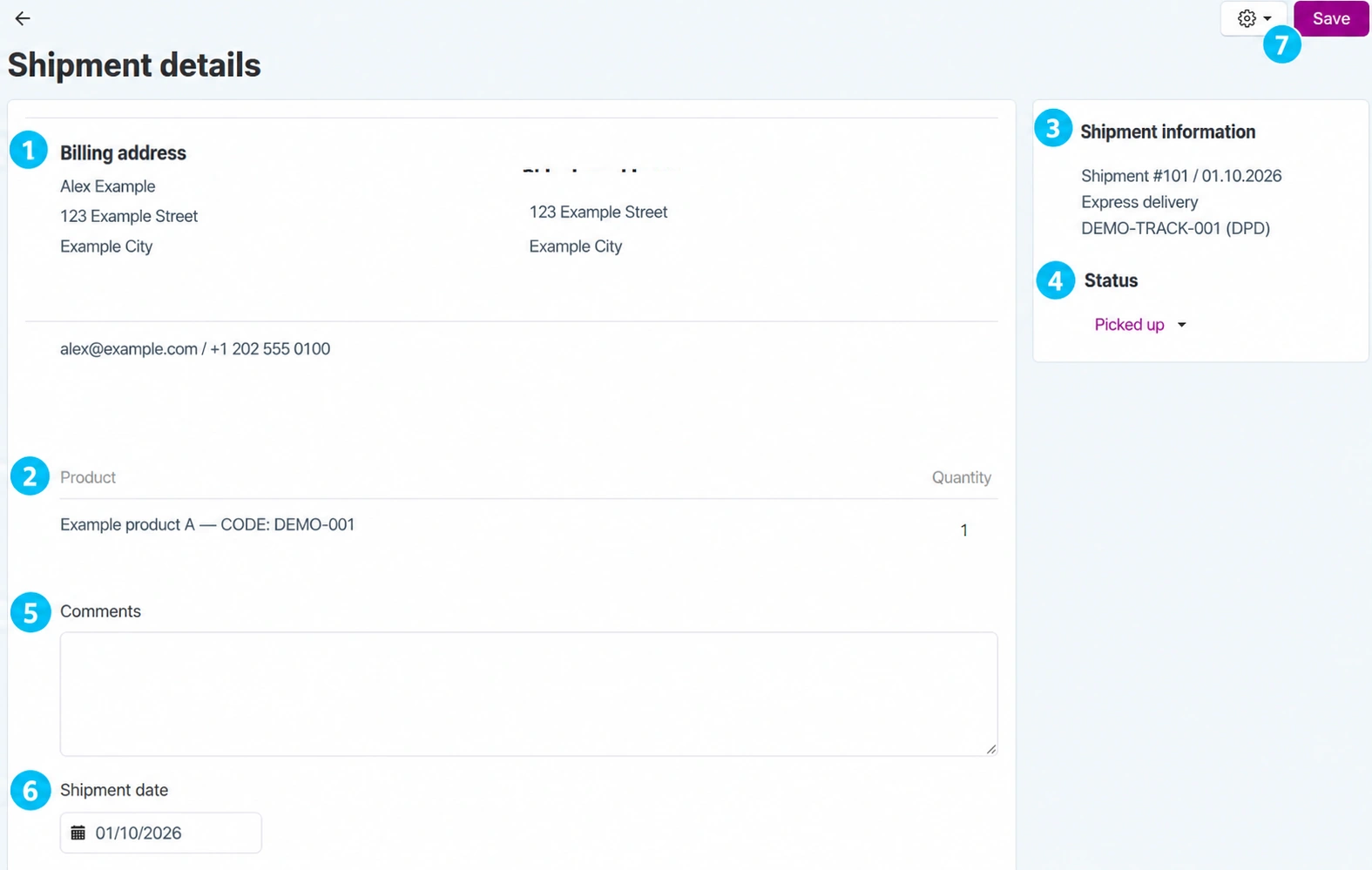
The screenshots use the English interface and sample data. The numbers link locations in the image to the localized instructions. Click the image for a larger view. Actual orders and customer data were not modified for the demonstration.
Shipment list and search
Open Orders → Shipments. The list displays the shipment number, linked order, dates, customer, delivery method, and status according to the available columns. Clicking the shipment number opens the shipment; clicking the order number opens the entire order.
In the search field, enter the customer or order ID, select a status, and click Search. Advanced search expands the criteria; carefully distinguish the order date from the shipment date. If a shipment is missing, first remove restrictive criteria and check whether it exists in the order details.
For multiple shipments of the same order, review each record. Count the total quantities shipped and compare them with the order, without counting anything twice. The order status Shipped does not replace this check.
- 01
Compare contact and addresses
Check the shipping and billing addresses, which may be different. Use the contact information to verify the specific shipment. If the package has already been handed over, changing the profile does not redirect the physical delivery; agree on the procedure with the customer and carrier.
- 02
Review the shipment contents
The table shows the products and quantities in this shipment. It may not contain all products in the order. Compare the codes and variants with the packaging and check whether any remaining quantity is intended for another shipment.
- 03
Check the shipment number, method, and tracking
The side panel links the shipment number, date, delivery method, Tracking ID, and carrier when entered. The shipment number is a CM identifier; the Tracking ID is used by the carrier. If a tracking link exists, check that it leads to the correct service and number.
- 04
Distinguish the shipment status from the order status
Shipments have the statuses Picked up, Packed, and Shipped, while the order has a separate list of statuses. The English screenshot shows Picked up. These statuses are not the same as the order status Shipped or QuickLink statuses. A selection in the menu may change the status immediately; use it only for an actual event and the agreed workflow.
- 05
Add a comment to the specific shipment
Record clear information relevant to the shipment and verify its purpose before entering confidential information. A comment is not an automatically sent message to the customer and is not a substitute for changing the Tracking ID.
- 06
Check the shipment date
Date and time fields for the record are available. They do not represent the actual physical delivery date automatically, nor the customer's preferred time slot. Change them only when correcting genuinely incorrect data; do not rewrite history to make reports look better.
- 07
Save and verify the record
Confirm the edited fields using the main Save button, then reopen the same shipment. Check the comment, date, and independent status. If the actions menu offers a packing slip, compare its contents before printing. An unavailable action depends on permissions and configuration.
Tracking and corrections
If tracking does not work, compare the Tracking ID and carrier with the shipping confirmation. Do not delete or recreate a shipment without checking the impact on quantities and notifications. To correct a field that is not editable in your view, send Connect Support the order number, shipment number, and the exact requested correction.
To ship the next part of an order, use the Create Shipment guide. To return a product that has already been delivered, use the RMA process; changing the shipment status is not a substitute for a return or refund.