

CONNECT HELPCENTER · ORDERS AND CUSTOMERS
Callback requests: from customer interest to a recorded response
Organize customer callbacks, assign a responsible person, review the product or order, and record the outcome of the conversation so no inquiry goes unanswered.

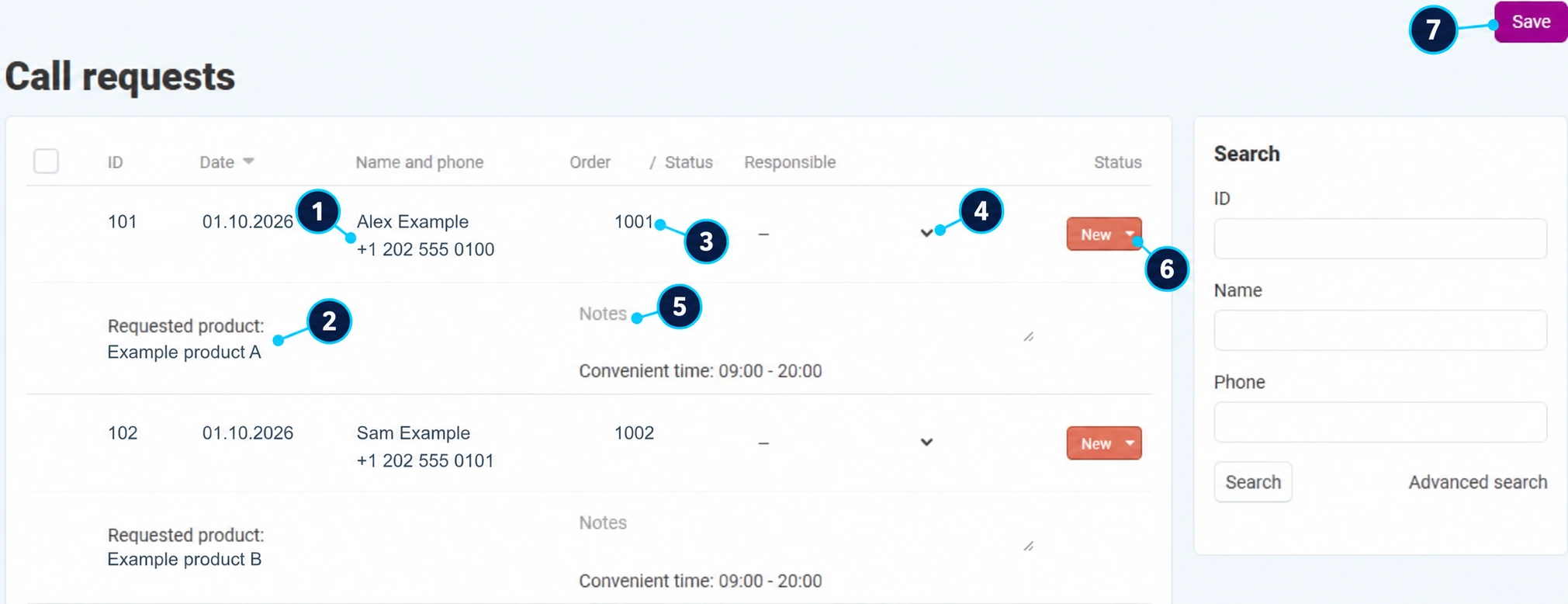
The recordings use the English interface and sample data. Numbers connect locations in the image with the localized instructions. Click the image for a larger view. Actual orders and customer data were not changed for the demonstration.
Where to find callback requests
Open Orders → Callback requests. A customer can request a callback related to a product or purchase. A request is not necessarily a new order: some records have a linked purchase, while others only have a product or cart contents.
The search on the right uses the request number, name, and phone number. Start with one criterion, click Search, and add advanced filters if you need to narrow the list. The recording contains sample data.
- 01
Check the contact details and time
Compare the name and phone number (1) with the customer's request. Read the requested callback time shown. If the number is incomplete, check the additional details before making contact.
- 02
Read the context of the inquiry
The product (2) or the cart contents view explains what the inquiry concerns. Before calling, check the variant, availability, and sales conditions.
- 03
Open the order if one exists
The number in the order column (3) leads to the purchase. The status next to that number describes the order, not the callback processing. Check payment and delivery before responding.
- 04
Assign a responsible person
In field (4), select an available team member. An empty selection means that no person has been assigned yet. Agree on who will handle the call so the customer is not called by multiple employees.
- 05
Record the agreement
In the note (5), summarize the outcome, next step, and deadline. Example: the customer requests another time; send confirmation by 3 p.m. The note should be understandable to a colleague who did not participate in the conversation.
- 06
Update the request status
Select the status (6) according to the actual outcome and the available values. A menu change may be saved immediately. Opening the record or attempting to call without an answer does not mean the conversation is complete.
- 07
Save the other changes
Use the Save button (7) to save the responsible person, notes, and related data. Refresh the list and check that the changes remain saved.
What to do after the conversation
- 01
The customer received an answer
Summarize the answer in the note and close the request with the appropriate status when there are no more open steps. Do not change the order status just because the call is complete.
- 02
The customer did not answer
Record the date of the attempt and arrange another attempt at an appropriate time. Leave the item in a stage that shows the contact has not yet been completed.
- 03
A quote or purchase change is required
Continue in the relevant module: quotes, cancellation or order details. Link the item numbers in the note.
- 04
A written clarification is required
Confirm the agreement through Message Center when the conversation is available. Do not put passwords, card details, or unnecessary private data in the notes.
The request is not visible or remains open
Check the storefront and remove the filters. If there are multiple requests from the same customer, process them according to their content and time, noting which conversation resolved which inquiry. If saving fails, check the permissions and system message; provide support with the request number and a description of the steps.