

CONNECT HELPCENTER · ORDERS AND CUSTOMERS
Sales reports: understanding results and checking orders
Track product and category sales, most active customers, payment methods, and status distribution. Select the same period and comparable criteria before drawing business conclusions.

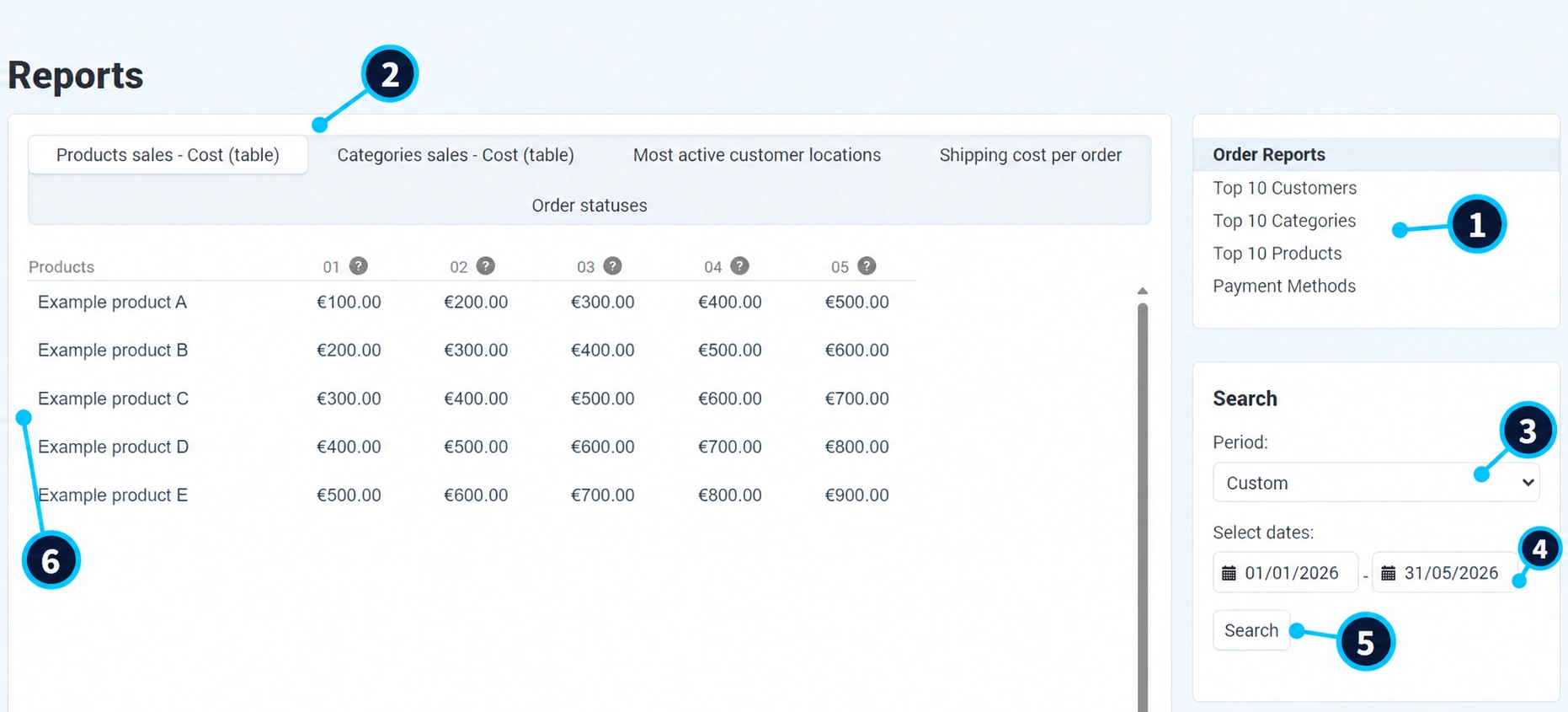
The screenshots use the English interface and sample data. Numbers link locations in the image to the localized instructions. Click the image for a larger view. Actual orders and customer data have not been modified for demonstration purposes.
Opening reports and selecting a period
Open Orders → Sales reports. The list on the right selects a report group, while the tabs above the table select an individual view within the group. Availability depends on settings and permissions.
The numbers in the screenshot are examples. Revenue, order count, product quantity, and profit are different metrics. The sales table alone is not a profit calculation or confirmation of bank payments.
- 01
Select a group
On the right, (1) select reports for orders, top customers, categories, products, or payment methods, depending on the question you are investigating.
- 02
Select a view
The tabs (2) show product or category sales, customer locations, shipping per order, and statuses. Changing the tab changes the data being analyzed.
- 03
Set the period
In field (3), select one of the available ranges. For manual entry, select a custom period.
- 04
Check the dates
The start and end dates (4) must cover the desired range. Compare an incomplete current month with the same number of days, not uncritically with the entire previous month.
- 05
Apply the selection
Click Search (5). After refreshing, check the dates before interpreting the results.
- 06
Read the unit and layout
In the table/chart (6), review the title, currency, time columns, and rows. In the screenshot, columns 01–05 represent the months in the selected range.
What individual reports show
- Product sales: the contribution of items to sales value. For variants, check the product code, not just the shortened name.
- Categories: the results of product groups. This is a different level of analysis from an individual item.
- Most active customers: sales concentration and repeat purchases. The ranking by number of orders may not match the ranking by amount.
- Locations: the geographic distribution of activity. Base conclusions on a sufficient number of purchases.
- Shipping per order: the amounts recorded in the purchase, which may not equal the carrier's final invoice.
- Statuses: the distribution across processing stages. Do not interpret open, unsuccessful, and canceled purchases as completed sales.
- Payments: the use of payment methods. The selected method does not confirm that every purchase has already been charged.
Checking results through orders
- 01
Record the criteria
The store, report, dates, currency, and metric should be the same when comparing results. Different report definitions do not necessarily produce the same total.
- 02
Open the order list
In the order overview set the same period and relevant statuses. Review several specific purchases included in the result.
- 03
Compare the composition of the amount
Distinguish between items, discounts, tax, shipping, and the total. Returns, partial returns, and status changes may explain the difference.
- 04
Check payment collection
Reports are based on system and status rules. To verify an actual payment, compare it with the payment system or bank records.
- 05
Repeat the same view
Refresh the report using the same criteria. If the difference remains unclear, send support the report name, dates, and specific order numbers.
Weekly and monthly analysis
Track open orders and statuses weekly. Compare top products, categories, and repeat purchases monthly. For profit, you also need the purchase cost, fees, actual shipping costs, and other business expenses.
If there is no data, expand the period and check the group and store. Discuss unavailable reports and changes to their definitions with Connect administration.