Customer support
All registered users can open a support ticket and track its status and responses from our team.

CONNECT HELPCENTER · PRODUCTS AND CATALOG
The booking system connects a product with available dates, time slots, or rental. Before enabling it, define the actual schedule, duration, capacity, and exceptions.
First create the basic product with a service description and price. Choose the operating model: time slots or rental by day. The displayed images explain the fields; zeroes, old dates, and disabled days in the example are not recommended settings for active sales.
Screenshots use the English interface and sample data. Numbered labels connect the image with the localized explanations. Click the image to open a larger view. The availability of individual fields depends on the product type and your account permissions.
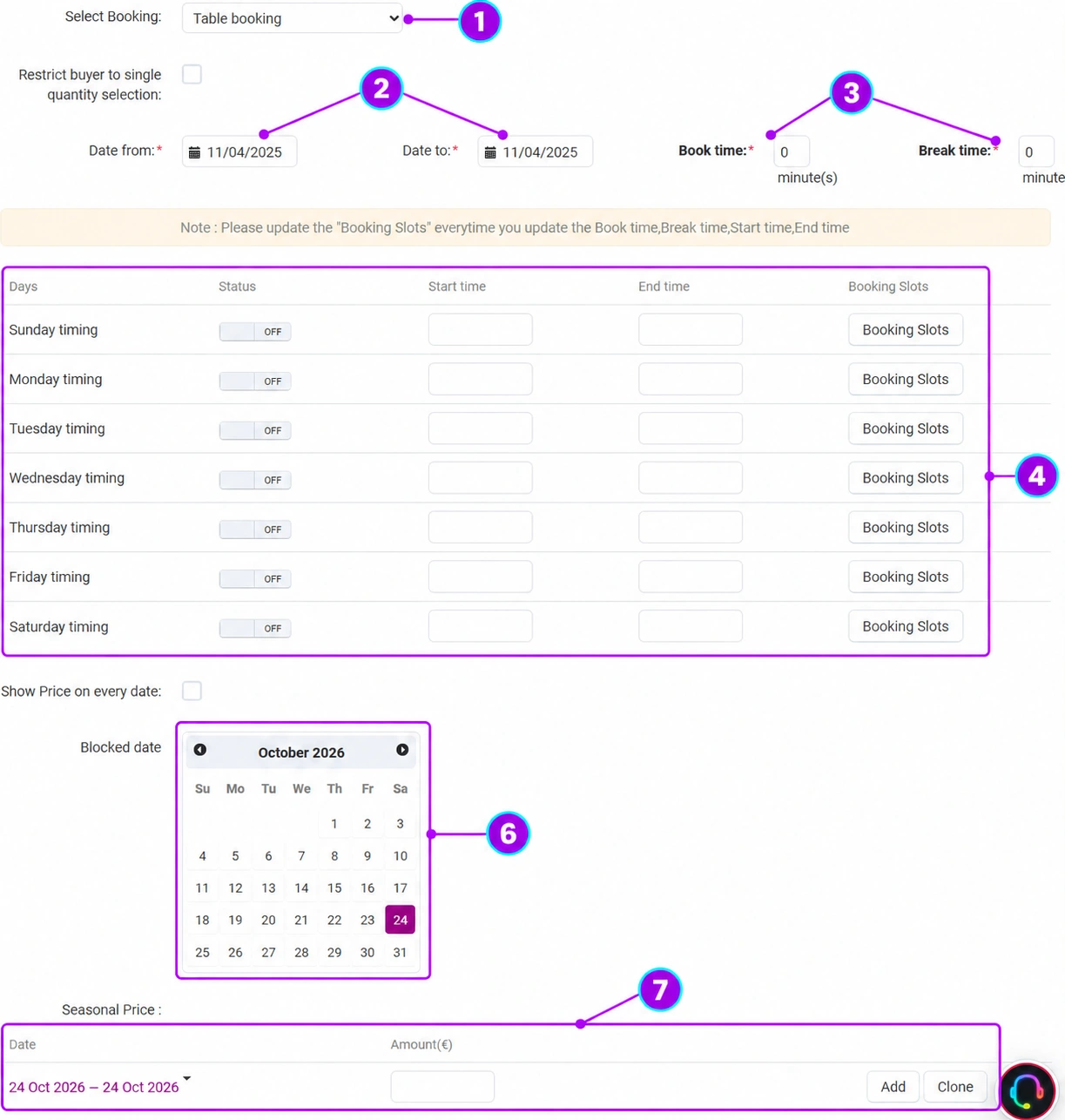
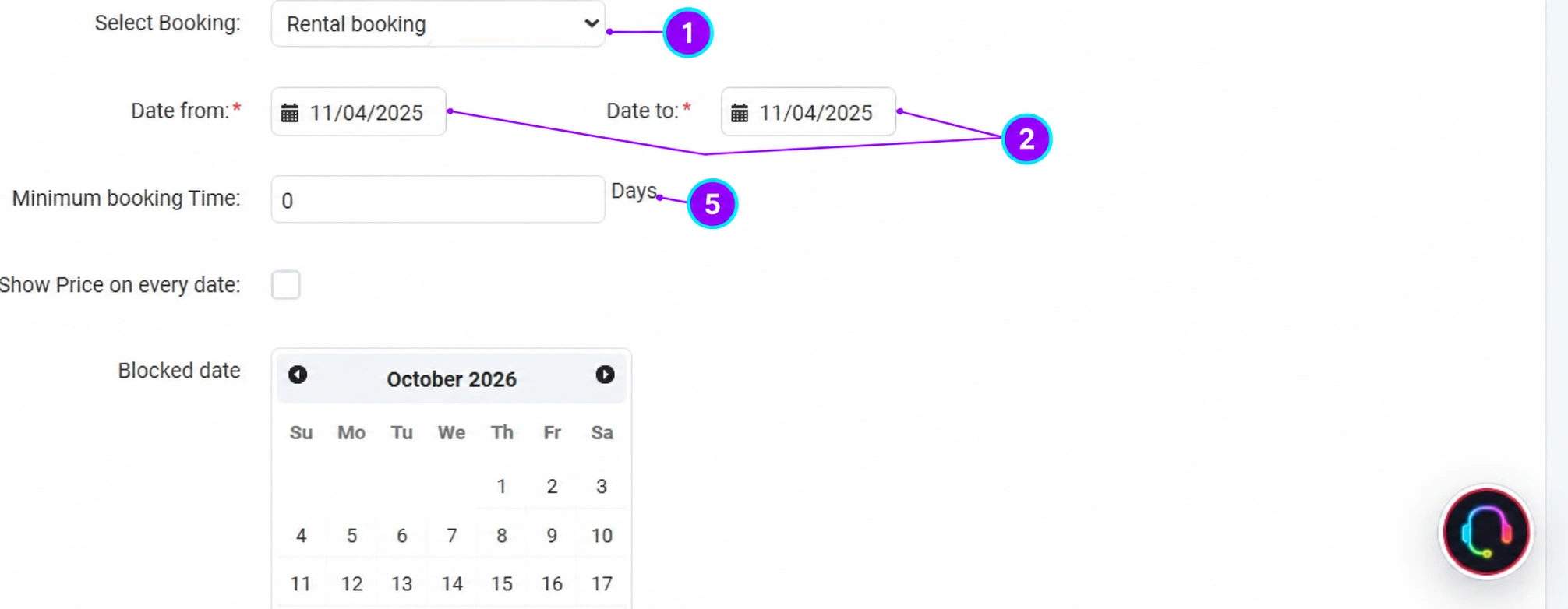
On the saved product, select Booking system. The selection No leaves booking disabled. Select time-slot bookings or rental according to the actual service. Changing the type opens the corresponding fields.
Enter the period during which bookings are offered. Check both dates, their order, and how local time is interpreted. The start and end dates of the availability period are not the same as the working hours of an individual day.
Specify the duration of the time slot and the break between time slots in minutes. The value must correspond to the actual service delivery and preparation time. Zero in the example is not a finished schedule. If the customer may select only one quantity, check the corresponding selection limit setting.
For each day of the week, check whether it is enabled, the start and end of working hours, and the button for booking time slots. The module message specifically requests refreshing the time slots after changing the duration, break, or working hours. Therefore, simply changing the number of minutes is not enough. Review the final sequence of time slots and their availability before saving.
For the rental type, the from date, to date, and minimum duration in days appear. Define the pickup and return policy in the service description, and check how the selected range is displayed and calculated. Do not assume that the number of nights and the number of calendar days have the same meaning in every offer.
In the calendar, set the required blocked days and review the saved selection. The current date may be visually highlighted independently of your blocks; check the values actually selected. Use blocks for exceptions, and align regularly non-working days with the schedule.
In seasonal prices, define the date range and the corresponding amount. Avoid contradictory overlapping rows and check the price displayed for each date if you enable this option. The base price and the seasonal rule must together produce the expected calculation.
Save the product, then check a working and a non-working day, a blocked date, the first and last time slot, the shortest rental, and the seasonal price. Check capacity and the behavior of multiple bookings in an agreed test with the Connect team before activation; the calendar display alone does not confirm that the entire business setup is complete.
For a 60-minute service with a 15-minute break, prepare the working days and the start/end of working hours, then refresh the time slots and review the schedule. For rental, prepare the minimum number of days and special prices by period. Both examples require a final check of the display and calculation.