Customer support
All registered users can open a support ticket and track its status and responses from our team.
CONNECT HELPCENTER · PRODUCTS AND CATALOG
Stickers visually highlight information or a benefit on a product. They can be assigned manually, automatically, or inherited from the main category, so check the label source before making changes.
Define the purpose and scope of the label: an individual product, a rule, or a category. The sticker itself does not change the price, stock, or the customer's eligibility for a benefit. The text must match the actual offer data.
Screenshots use the English interface and sample data. Numbered labels link the image to the localized explanations. Click the image to open a larger view. The availability of individual fields depends on the product type and your account permissions.
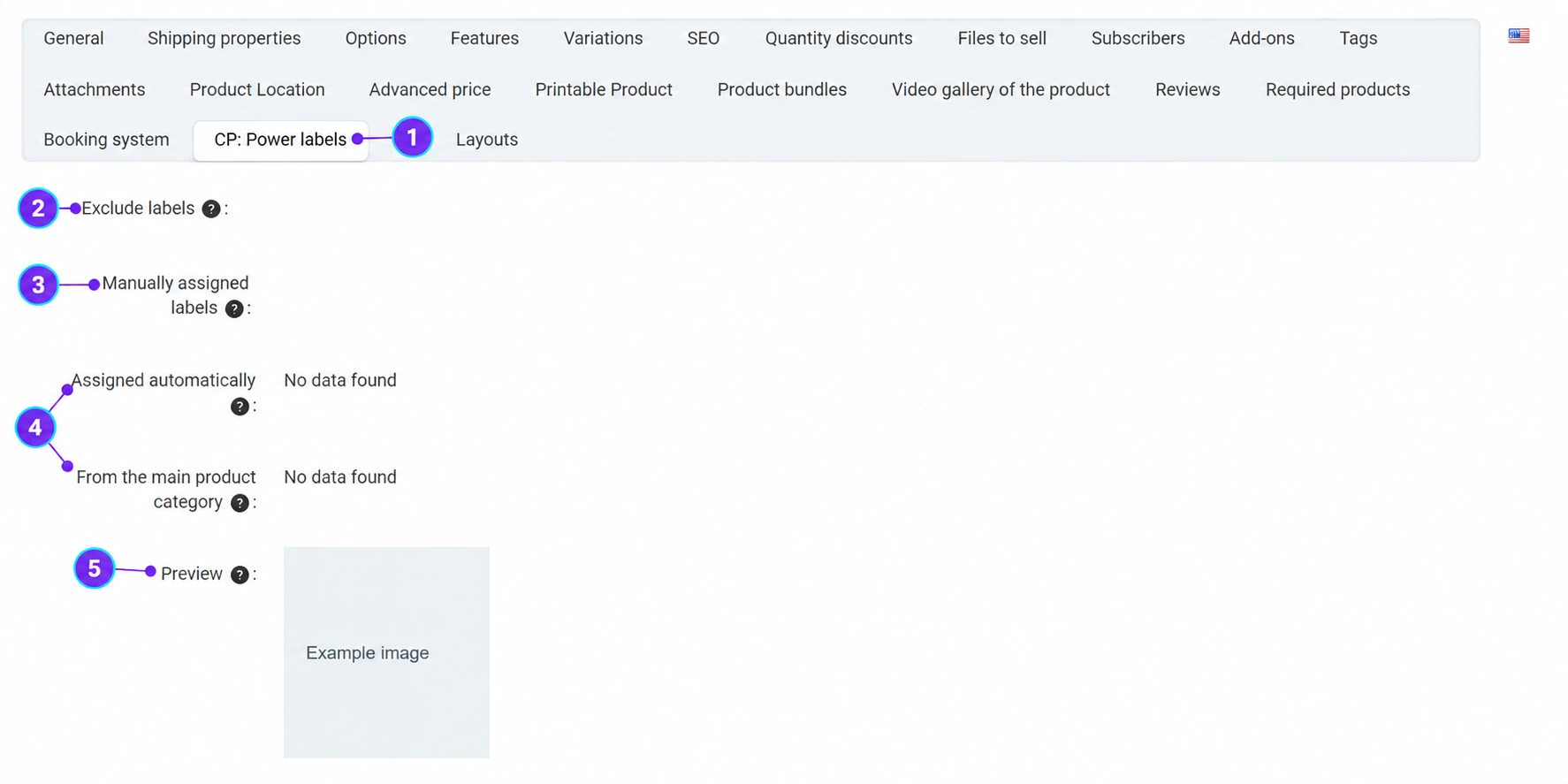
Open the product and the stickers tab. In the English view, it is labeled CP: Power labels. First review the existing label sources.
The excluded labels field is used to exclude applicable labels according to the module's rules. Use it only when you know which label you want to exclude and why. Excluding a label does not correct an incorrect price or the data from which it is calculated.
In the manual assignment field, find the prepared label and select it. If the requested sticker does not exist or does not have the appropriate appearance, send a request to the Connect team. Do not duplicate shared labels for the same content just for another language.
The automatically assigned labels section shows the result of the rules, while a separate section shows labels from the product's main category. An empty manual assignment does not mean that the product has no sticker at all. If the cause is an incorrect category or product value, arrange the correction at that source.
The preview helps verify the placement of the label next to the image, but the final display also depends on the template. Save the product, then check the category list, item details, and mobile view. In the screenshot, the actual product image has been replaced with a sample image.
If the sticker indicates a new product, discount, or availability, check that the message is still valid. For time-based or rule-driven labels, tell the Connect team the conditions and the expected end of the display. Do not use a sticker to replace an actual change in status or price.