Customer support
All registered users can open a support ticket and track its status and responses from our team.

CONNECT HELPCENTER · PRODUCTS AND CATALOG
A subscription product connects an offer with billing periods and duration rules. Before activation, clearly define what the customer receives, when, and at what price.
Prepare the delivery content, billing period, total duration, termination rules, and a supported payment method. Feature availability depends on your account permissions and configuration. A product subscription is not a back-in-stock or newsletter notification signup.
Screenshots use the English interface and sample data. Numbered labels link the image to the localized explanations. Click the image to open a larger view. The availability of individual fields depends on the product type and your account permissions.
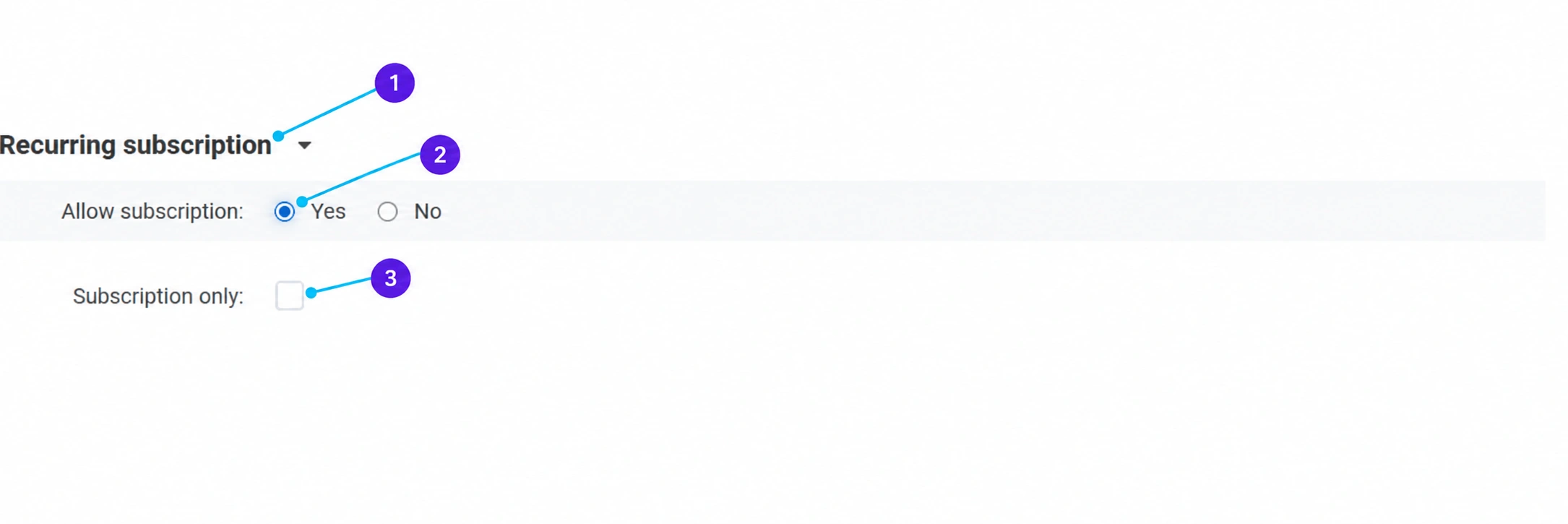
In the saved product, open the Add-ons tab and the subscription section. If it is not there, ask Connect administration to check its availability.
Select Yes when the product should allow a subscription. The image shows an example with the fields open; the actual product used for the screenshot was not saved with the changed setting. Define the complete offer model before activation.
A separate checkbox restricts the product to subscription mode when that is intended. If you also allow a one-time purchase, make sure the public display clearly distinguishes both choices and their prices.
After enabling and saving, the corresponding subscription tab opens, depending on availability. There you can edit billing periods, the option to select a start date, subscription termination, and other permitted rules. Periods are also available under Products → Recurring subscriptions → Subscription periods. If the required definition is missing, coordinate it with the Connect team.
Monthly billing and a subscription lasting one year in total are not the same data. Duration settings can be unlimited, selected by the customer within the permitted range, or set manually. Align the units of days, weeks, months, or years and check what the customer actually selects.
With the Connect team, verify the supported payment method and the flow of subsequent orders. The subscription label alone does not prove that every card or method is charged automatically. Track records in the subscription list and available messages in the notification log. Before activation, perform the agreed test of the initial purchase, the next cycle, and subscription termination.
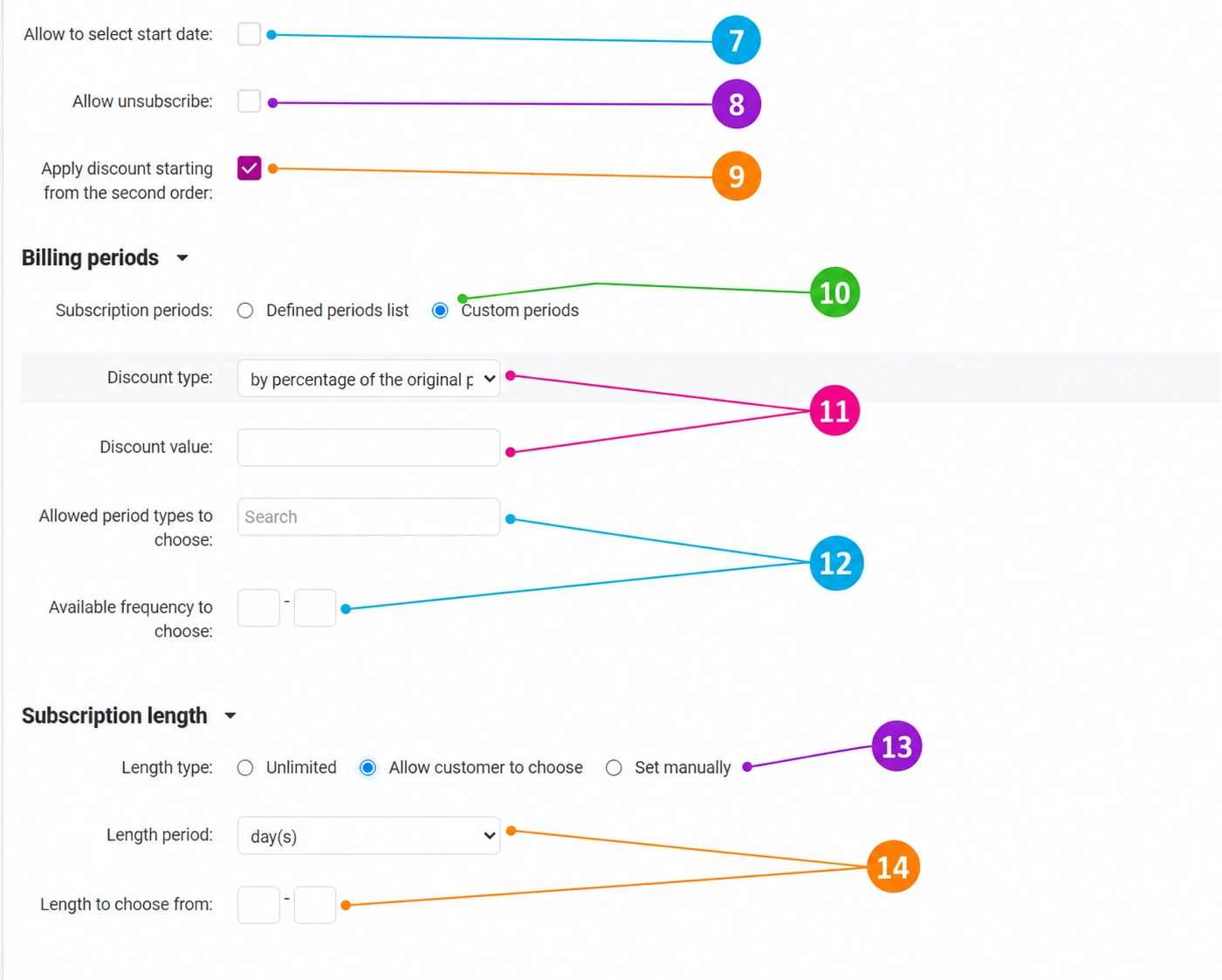
After allowing the subscription in Add-ons and saving the product, open the Recurring subscriptiontab. The Allow start date selection checkbox lets the customer choose the start date. Enable it when you can actually start the service or delivery on the selected date. Check the start date in the customer's selection and in the subsequent subscription record.
The Allow subscription cancellation setting controls the available interruption option for the customer. Clearly state the cancellation procedure, deadline, and effect in the offer description. Cancelling a subscription, issuing a refund, and cancelling an order that has already been created are separate actions; check each one according to the agreed model.
The Apply discount from the second order checkbox is intended for a model in which the first order has no subscription discount and the benefit starts with the next cycle. If you enable it, tell the customer the price of the first and subsequent deliveries and verify this in a test.
Under Billing periods you can choose between two modes. For predefined terms, select List of predefined periods, then Select cycle periods for existing definitions or Add subscription period for a new one. For a range selected by the customer, choose Custom periods; the fields shown in the image then open. Selecting a mode without adding periods or limits does not complete the subscription.
For custom periods, select a percentage of the initial price or a fixed amount and enter the discount value. For example, 10 with a percentage means 10%, while with a fixed amount it means 10 units of the displayed currency. Check whether the benefit applies from the first or second order according to label 9.
Select the permitted units: days, weeks, months, or years. Then, in the two Available frequency for selection fields, enter the lower and upper limits. To allow a selection of every 1 to 3 months, allow months and set the range to 1–3. This is the interval between cycles, not the total subscription duration.
Unlimited does not have a predefined end to the duration. Allow customer selection opens a duration range. Set manually opens a single predefined value. Select the model that matches the sales offer and termination rules; unlimited duration does not guarantee successful billing for every subsequent cycle.
For customer selection, set the duration unit and the minimum/maximum value. For a manually set duration, set the unit and one value. Example of a monthly subscription for one year: the billing period is 1 month, while the total duration is manually set to 12 months. If the customer selects a duration from 3 to 12 months, choose that model and the 3–12 range.
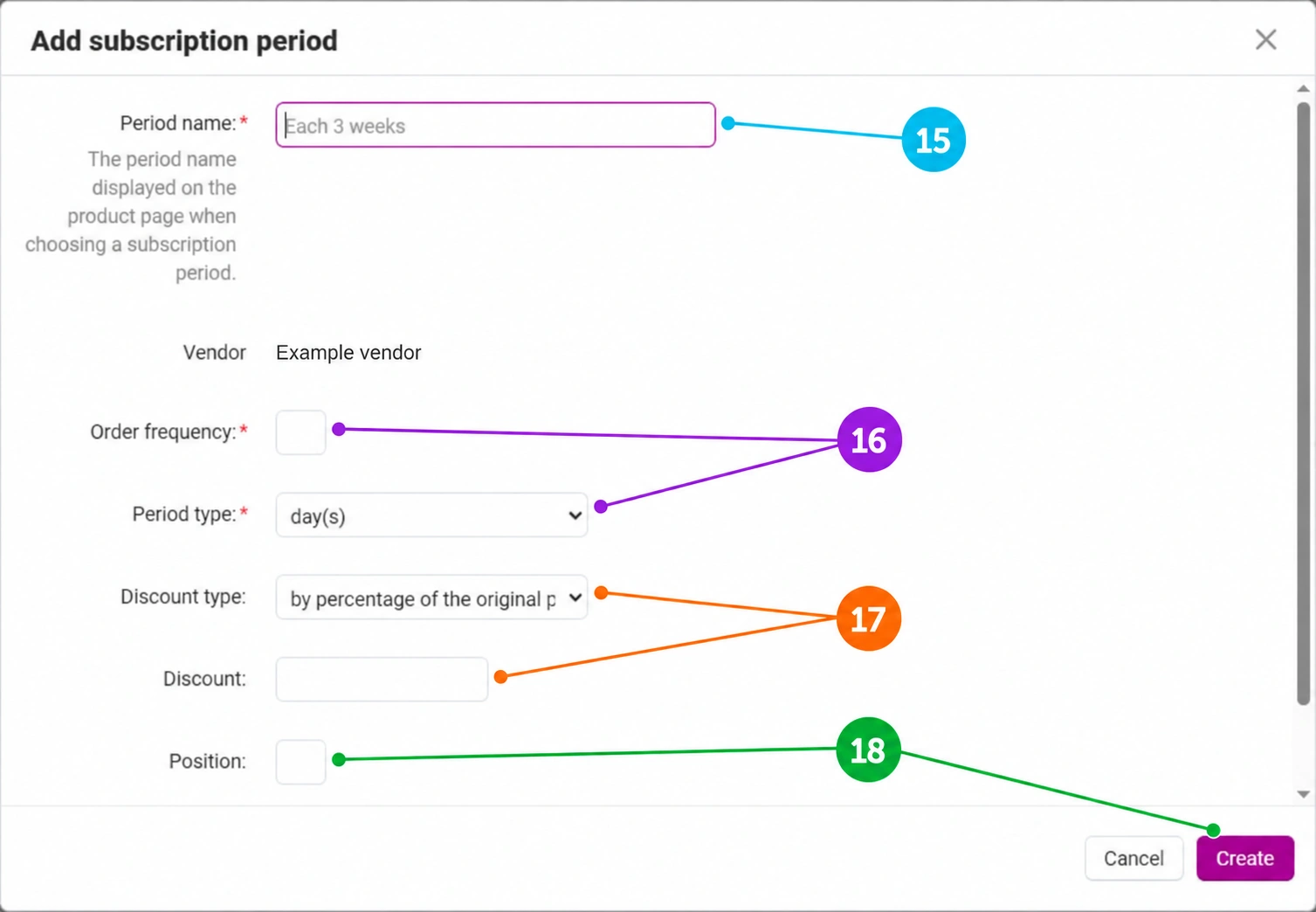
On the subscription tab, select the list of predefined periods and then Add subscription period. Enter clear text in the name, for example “Every month” or “Every 3 weeks”. The name is shown to the customer during selection and must match the numerical settings below. Check the assigned vendor.
Under Order frequency enter a number, and under Period type select days, weeks, months, or years. For a monthly cycle, enter 1 and months; for every three weeks, enter 3 and weeks. Do not enter the number of total deliveries or the total contract duration here.
Choose the discount type and value. You can prepare different benefits for different cycles, while checking the final calculation and the setting for a discount from the second order. The field is a discount, not a standalone subscription price. Clearly explain the price of the initial and recurring orders to the customer.
Position is used for the display order. Click Create in the dialog, then check the list of linked periods and save the product using the main Savebutton. For an existing period, open the editing option available in the list; for shared definitions, check whether other products use them before editing.
On the public page, check the one-time purchase versus the subscription, the offered periods, discount, start date, and duration. Use the agreed test to verify the first and recurring orders and termination. The automatic billing method depends on the supported payment method and configuration; product settings alone do not enable automatic charging of every card.
Open Products → Recurring subscriptions → Subscription list. Search by product, order number, customer, email, phone, or status, and open the corresponding record when available. In the Notification log review the available messages. An empty list means that there are no records in the selected context, not that the product settings are automatically incorrect. Do not consider changing product rules confirmation that all already-agreed subscriptions were changed retroactively; check each record with support.
The screenshots show fields being opened without saving changes to the actual product. Example values are explained in the text. Be sure to complete the settings before offering an active subscription to customers.