Customer support
All registered users can open a support ticket and track its status and responses from our team.

CONNECT HELPCENTER · PRODUCTS AND CATALOG
The event module connects product sales with the date and time, location, capacity, and ticket template. Simply mentioning “ticket” in the product description does not complete this configuration.
Prepare the event name and location, start and end date and time, number of participants, price, and sales product. Check what one purchased unit represents. Coordinate the ticket template and issuance data with the Connect team.
Screenshots use the English interface and sample data. Numbered labels link the image to the localized explanations. Click the image to open a larger view. The availability of individual fields depends on the product type and your account permissions.
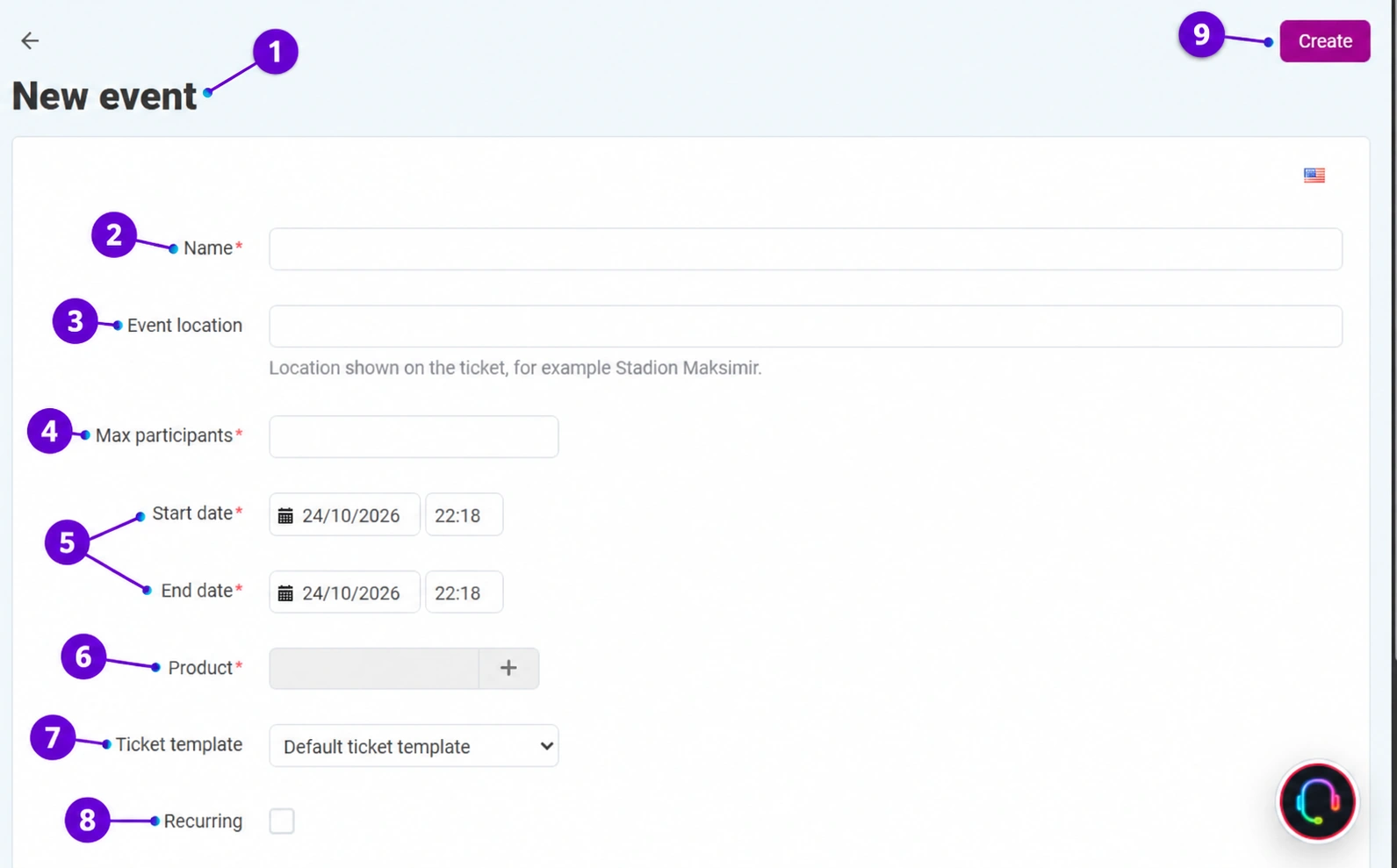
First, prepare the product according to the basic instructions. Then, in the administration, open Web site → Event list → Add event. The image shows a new event form without saved real data.
The name should clearly identify the event and distinguish it from other dates or editions. Align it with the name and description of the sales product so that the customer does not purchase an unclear offer.
The event location field is used for the text displayed on the ticket. Check the venue name and the address that you need to show to the customer. This field is not the same as the product location coordinates on the map.
Set the capacity according to the places actually available. Compare it with the inventory and purchase rules of the linked product. Do not use an arbitrarily large number just to get through the form.
Check both dates and both times. The start of sales, event date, and duration are not necessarily the same thing. If the event spans multiple days, check that the end belongs to the correct date.
Use the selector to choose the exact sales item. Compare the code, price, and description. Do not accidentally link another package, another ticket type, or a product from another date to the event.
Select a prepared template or create your own in the generator as described later in this guide. For a more demanding design, involve the Connect team. Before publishing, review the name, location, date and time, and identification on a test ticket.
If the event is recurring, enable the appropriate setting and check the frequency, interval, and number of repetitions further down in the form. One multi-day event is not automatically a series of separate events.
Confirm Create, then review the event and linked product. Ticket download availability also depends on the module configuration and order statuses. Use an agreed test to check the purchase, participant records, ticket appearance and download, and the process for changing or canceling the order. Do not promise automatic delivery before this has been verified.
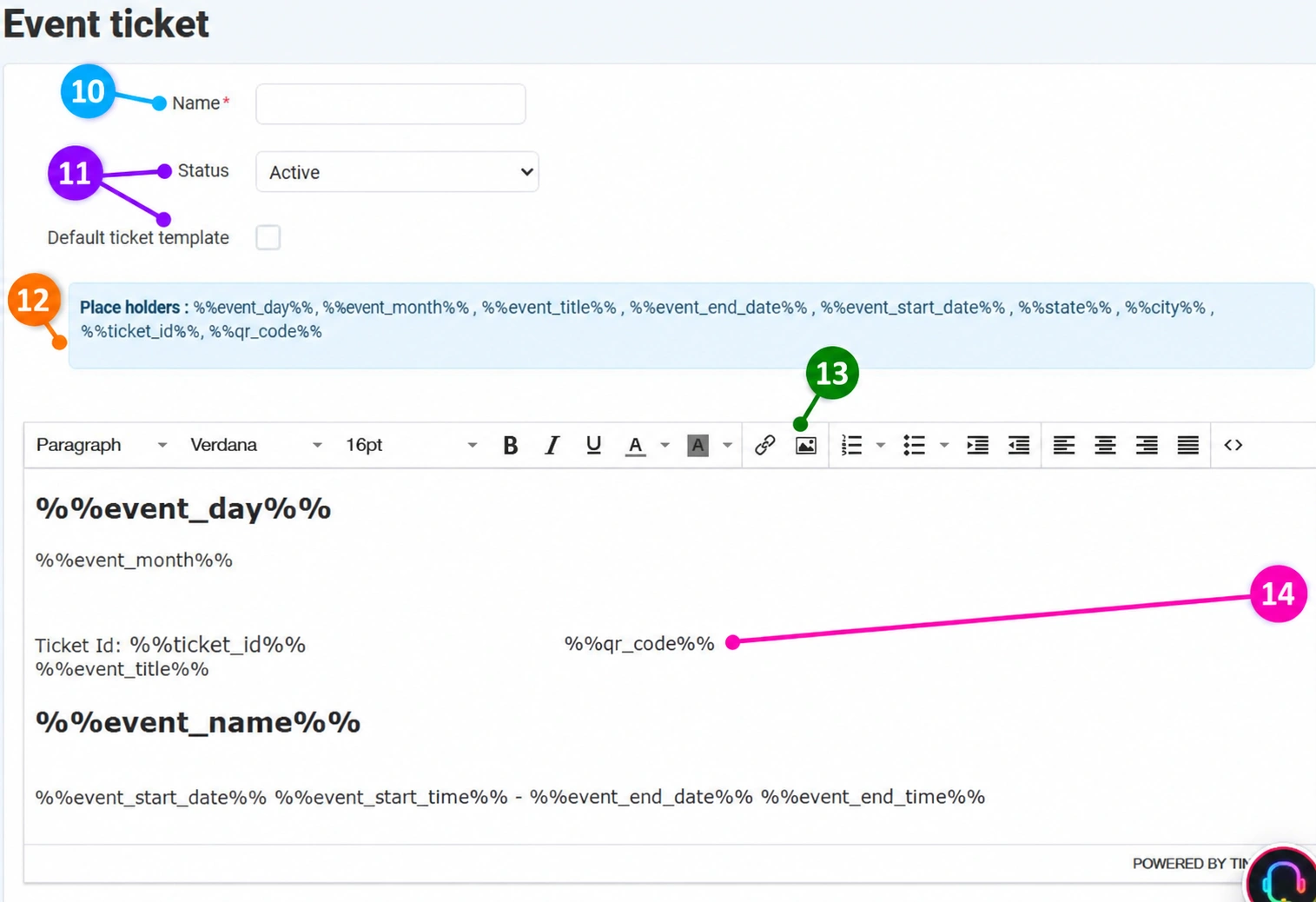
Select Web site → Event list → Event ticket design, then Add ticket template. To edit an existing custom template, open its editing view. Enter a name that you can easily recognize when selecting the template for an event. The image shows the actual new template form.
Select an active or disabled status according to the design's readiness. Use the label Default ticket template when this is intended for your available context. For a special design for a single event, also be sure to check its explicit selection in the event form.
The blue box lists replacement tags, for example %%event_title%%, %%event_start_date%%, %%event_end_date%%, %%event_day%%, %%event_month%%, %%state%%, %%city%%, %%ticket_id%% and %%qr_code%%. Copy them exactly, including the % characters. When issued, they are replaced with the corresponding data; do not manually replace them with the actual ticket number or one shared QR code.
Edit the content and layout of your ticket in the large area. The toolbar allows you to select the font, size, bold formatting, color, alignment, and insert an image or link. Use the image button to add a logo or prepared visual. This lets you create your own design instead of using the unmodified default template. The source code button is intended for more advanced editing of the HTML layout; for more demanding layout and graphic preparation, involve the Connect team.
Leave space in the design for the event name and date and time, ticket ID, and dynamic QR code. Ensure that the text is readable and the QR code is sufficiently clear; decorative elements must not cover them. Displaying replacement tags in the editor is normal before issuance. Save the template using the main button Save at the top of the page.
Return to Event list, open the event, and in the field Ticket template select the design you just saved. Save the event and use an agreed test to review the issued ticket or PDF: layout, logo, replaced data, date and time, ID, and QR code. The appearance in the editor is not final confirmation of the appearance of the generated document. Also check the download availability rules according to the order status.
The generator is used to format the ticket template. It enables a custom content layout, typography, and graphics; perform the final check on an issued test ticket. Do not modify a shared or already used template before checking which events it affects.